

What it does
The Ontology is Pluvo’s map of your business. It takes the raw tables from your connected data sources and organizes them into meaningful business entities, such as accounts, invoices, contacts, and employees, and shows how they connect to one another. This matters because the rest of Pluvo works from this map. When you ask a question or run an analysis, Pluvo reasons over these connected entities rather than guessing from raw tables, which is what keeps answers grounded in your actual data.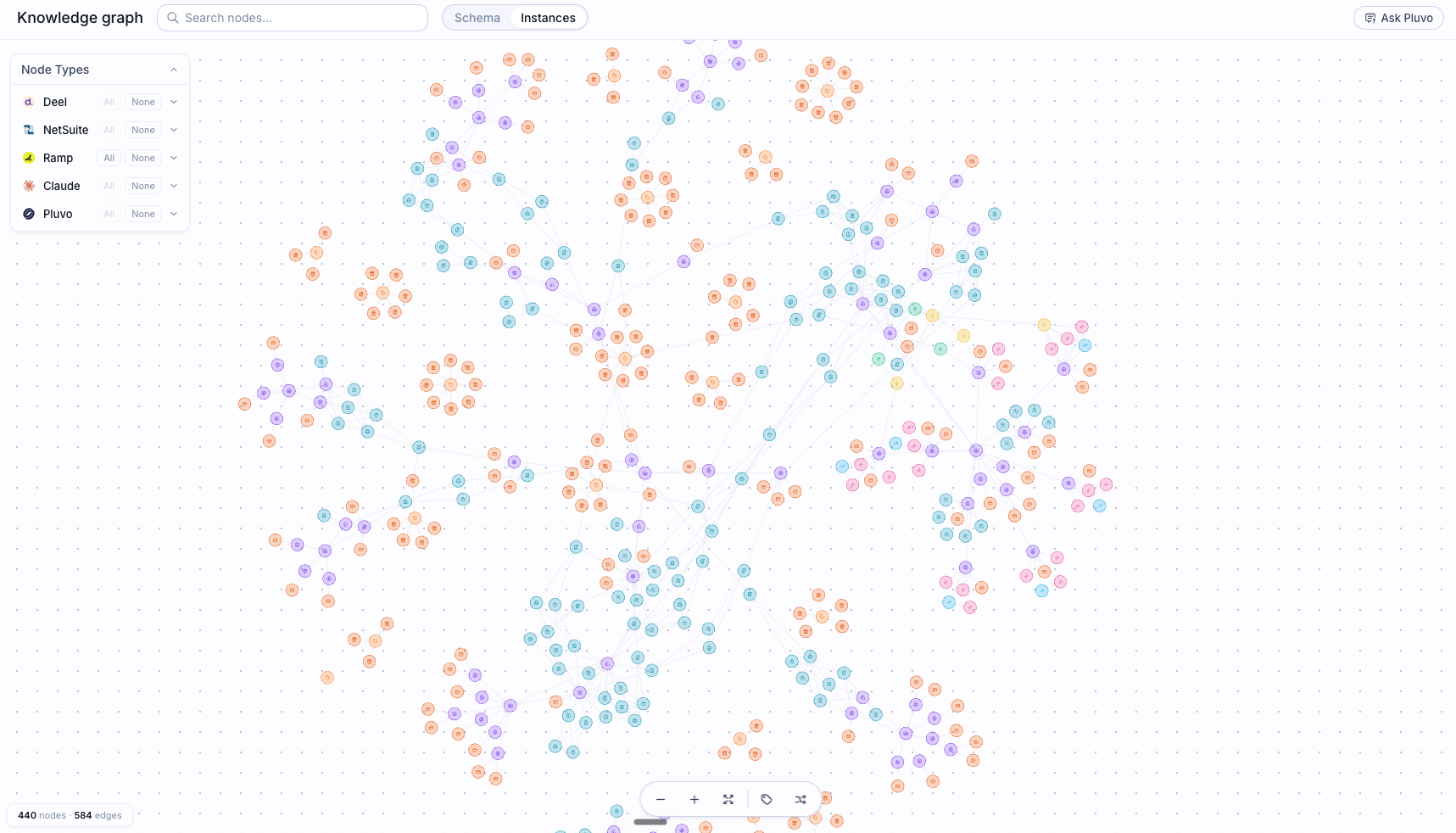
The Ontology view, showing mapped entities and the relationships between them
Getting around the page
Connection selector. At the top left, choose which connected source you want to view (for example “NetSuite data”). The badge near the top shows how many connections you have in total. Schema and Instances. Toggle between two ways of looking at your data:- Schema shows the structure: which entity types you have and how they relate. Think of it as the blueprint.
- Instances shows the real records flowing through that structure: individual accounts, invoices, and contacts, and the links between them.
Reading the graph
The visual in the center is your business as a network:- Nodes are the entities, shown as circles. In Schema view a node is an entity type; in Instances view a node is a single record.
- Links are the relationships between them, shown as connecting lines.
- The counter at the bottom (for example “Instances / 266 nodes / 479 links / 71%”) tells you the view you are in, how many nodes and links are shown, and how much of the graph is currently visible.
The left panel
The panel on the left summarizes the selected connection:- Mapped connection and its status (for example READY).
- Tuples and Limit: how many records are shown and the cap on how many load at once (1000 by default), which keeps large graphs fast.
- Tables: how many source tables are included in this mapping.
- Published and Release: when the current version of the Ontology was last published and its version identifier. Each time the mapping is updated and published, a new release is created.
- A list of the source tables with their row counts (for example “accounts, 6384 rows”).
If a graph shows a “truncated” notice, you are seeing a capped sample for performance, not your full dataset. Use search and the node type filter to focus on what you need.
How the map gets built
1
Connect a source
In Data, you connect a system and choose which tables to bring in.
2
Map tables to entities
Pluvo maps those tables to business entities, so an
accounts table becomes the Account entity, for example. You can review and adjust this from Data settings.3
Publish a release
Publishing turns the mapping into a usable version of your Ontology. Once it shows READY, the Instances view is live and the rest of Pluvo can use it.