

Forecast Definitions
Every variable in Pluvo includes a forecast definition—this is the logic or input that drives your model forward. Think of it as your planned or expected values for the future, defined either manually or using formulas. Forecast definitions can be found in the “forecast” column on every grid (figure 1)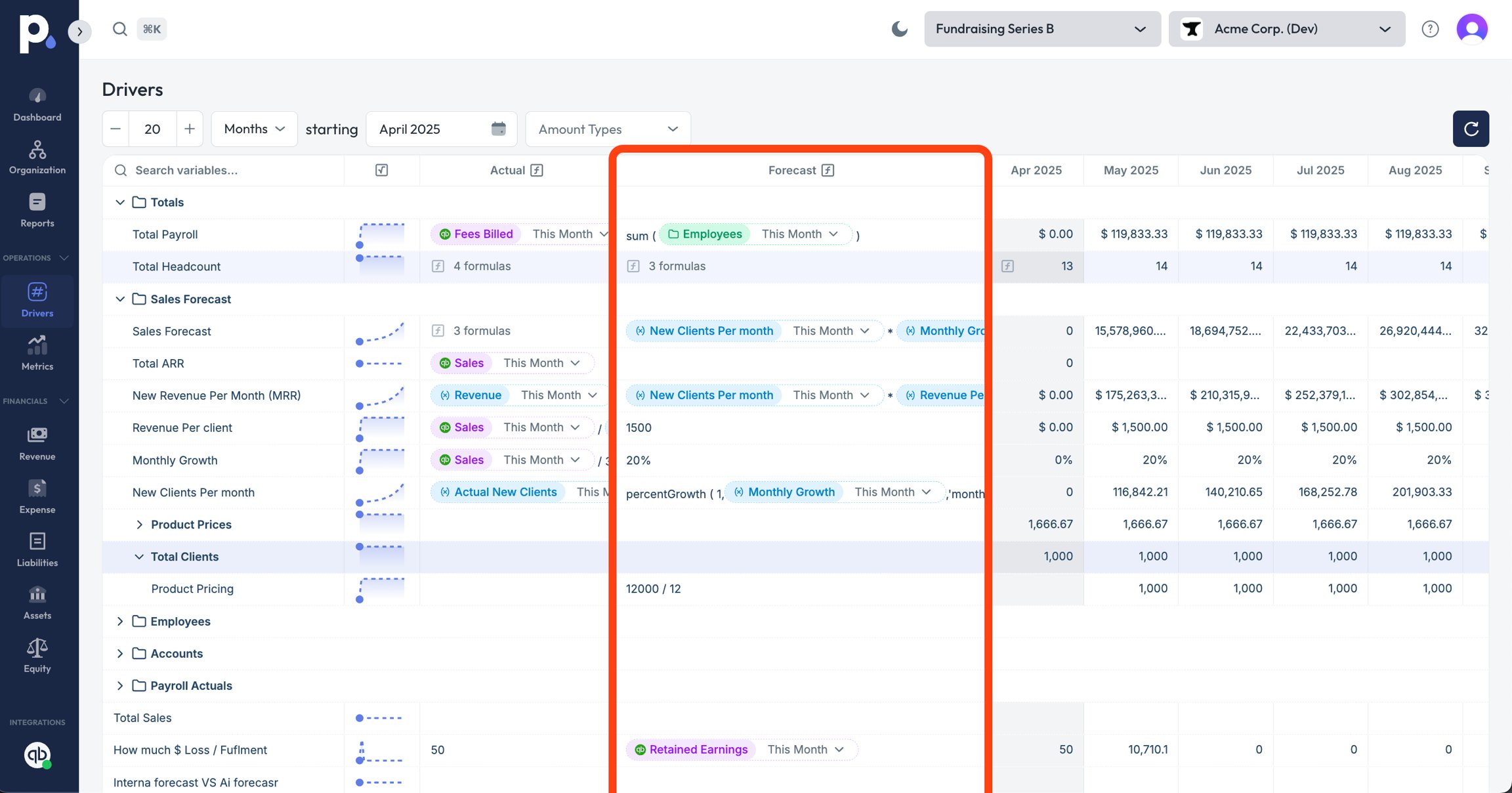
How to Define a Forecast
There are two main ways to define a forecast:- Manual Entry
10,000(Rent per month)5(New hires per quarter)
- Formula-Based
- `#unit_price
- #units_sold`
- `#base_salary
- #headcount`
Inline Editing vs.
Full-Variable Formulas In Pluvo, you can define forecasts in two ways:- Apply a formula to the entire variable (across all time periods)
- Manually edit or input a formula into individual cells using inline editing
Full-Variable Formula
You can define a formula once that applies across every time period in the variable. Use this when the logic is consistent over time, like: `unit_price- volume`
Inline Editing (Single-Cell)
You can click into any cell in the grid and type a value or formula directly.- Manual entries override the full-variable formula for that specific time period
- When you do this, the default formula ends the period before and resumes the period after
- You can input a constant value (e.g.,
12000) or a formula (e.g., `headcount - 8500`)
- You can drag your inline formula across multiple cells to apply it over a range of periods
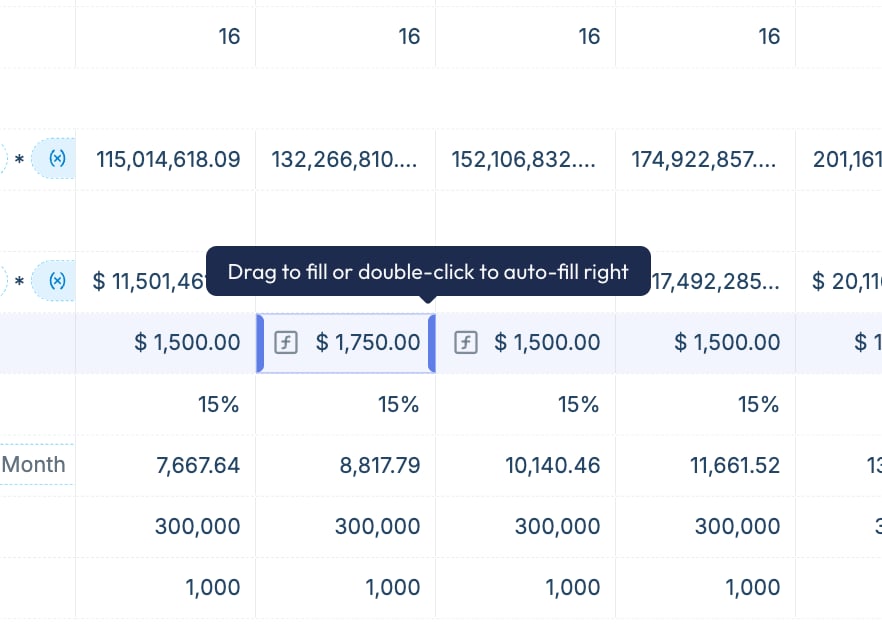
- Delete the cell’s content and hit
Enter - The original full-variable formula will reapply automatically for that cell
Tips
- Start simple—use constants or basic formulas first
- Layer in complexity gradually using helper variables
- Use clear variable names to keep your logic readable
- Forecast logic applies across all scenarios by default
How It Works Across Scenarios
- Inline edits in the base scenario are applied across all scenarios
- Inline edits in alternate scenarios will delink that cell, allowing you to customize that period just for the selected scenario
Best Practices
- Use full-variable formulas when logic is consistent
- Use inline edits for exceptions, corrections, or one-off adjustments
- Drag local formulas when you want to apply specific logic across a limited timeframe
- Use clear naming and structure to keep logic traceable