If you’re ever wondering why your numbers are looking slightly off, be sure that you check how recent your data sync is.
In this section we will cover how to refresh your Quickbooks or Xero data within Pluvo:
 Step 1: Take a look at the data sync widget found in the bottom left corner of your interface.
We see that the Quickbooks data was synced with Pluvo 9 days ago. This means that the data sync was successful - as indicated by the green dot.
However, we want to work with nothing but the most up-to-date actual data possible.
So let’s figure out how to refresh our data.
Step 2: Click on your integration in the bottom left corner to navigate to the data sources screen (pictured below).
Step 1: Take a look at the data sync widget found in the bottom left corner of your interface.
We see that the Quickbooks data was synced with Pluvo 9 days ago. This means that the data sync was successful - as indicated by the green dot.
However, we want to work with nothing but the most up-to-date actual data possible.
So let’s figure out how to refresh our data.
Step 2: Click on your integration in the bottom left corner to navigate to the data sources screen (pictured below).
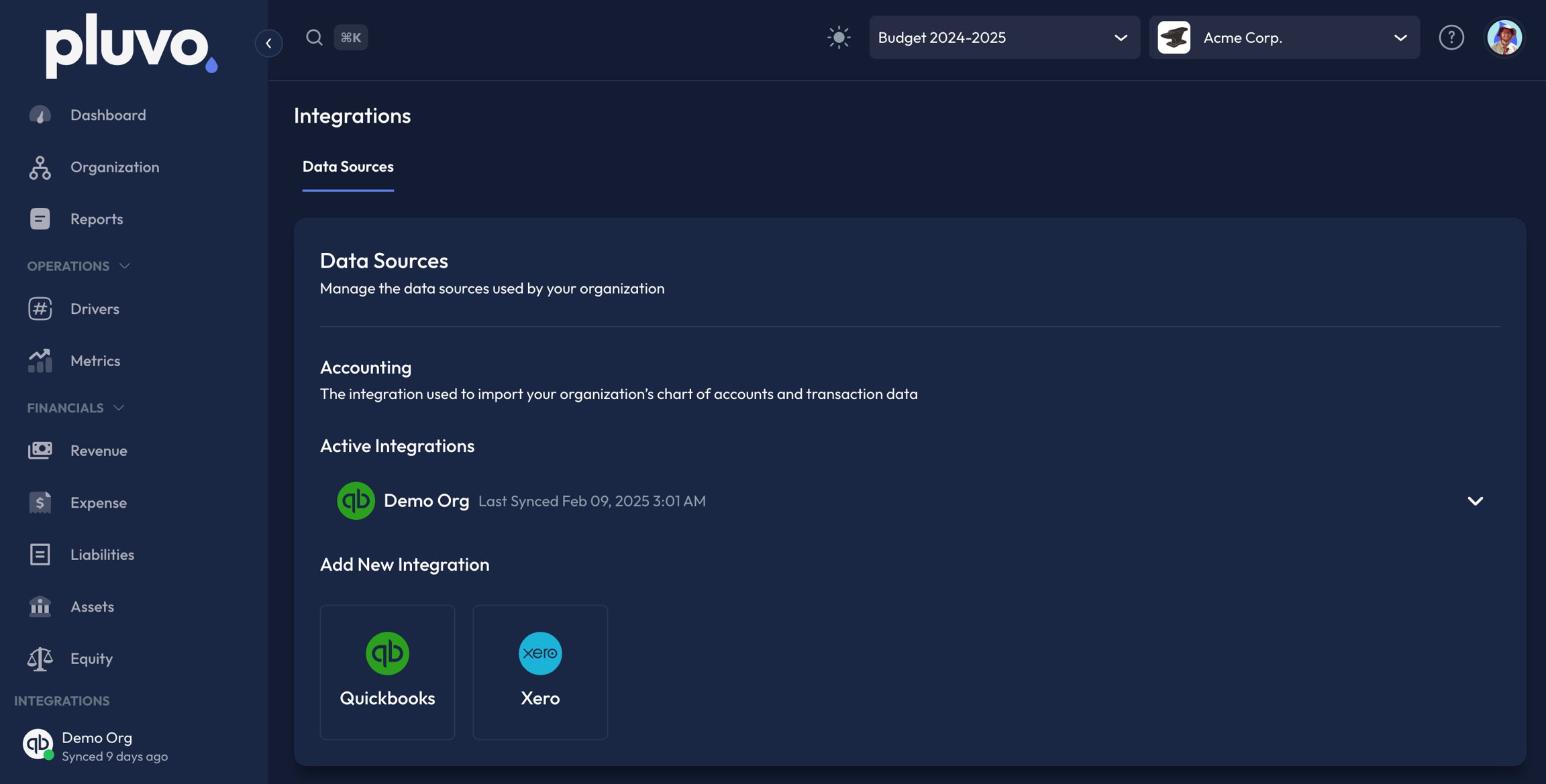
Step 3: Open the dropdown menu to your preferred accounting integration

As shown in the Data Sync knowledge article, we have already connected Pluvo to our Quickbooks Online account. This is a key step to updating your financial data. If you have not done so already, please reference that article to learn how.
You will be notified that your data has been synced with a popup, as well as the data sync widget in the bottom left corner of your interface.
- Sync now button will pull the most recent up to date actuals from your accounting data.
- Change date button will allow you to adjust the amount of historical data you are pulling into Pluvo from your accounting software of choice.
- Disconnect button will disconnect your accounting software from Pluvo and delete all forecasts associated with those GLs.
Important: please contact support@pluvo.io before disconnecting any of your accounting integrations. 
