

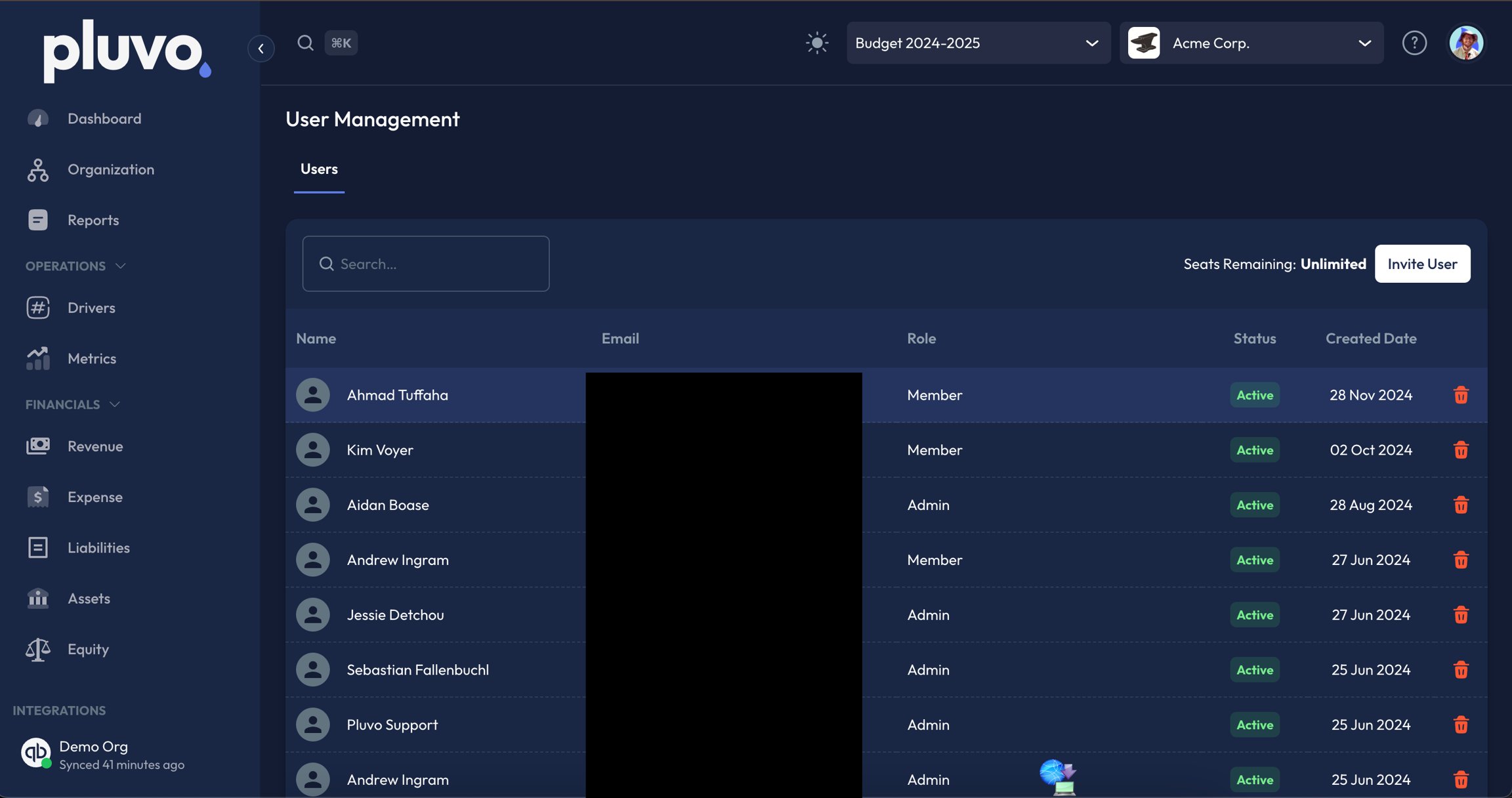
There are 5 seats per standard organization. If you require more, please reach out via the billing and licensing section of Pluvo’s help center.
When adding a new user to your organization, all you need to do is input their email address. A temporary login will be sent to that address which will allow them to log in. From there, we recommend that the user immediately sets a new password within the user settings widget.
When inviting new users, you must select a role: Member or Admin. The difference in roles is that members are more limited in what data they can see, whereas an admin can see ALL data.
- Members: Can see financial data that pertains to them, based on where they fall in their organization’s hierarchy (more on this in the Organization knowledge article).
- Admins: Can see all financial data in an organization, for administrative purposes.