> ## Documentation Index
> Fetch the complete documentation index at: https://docs.pluvo.io/llms.txt
> Use this file to discover all available pages before exploring further.
# Account Settings
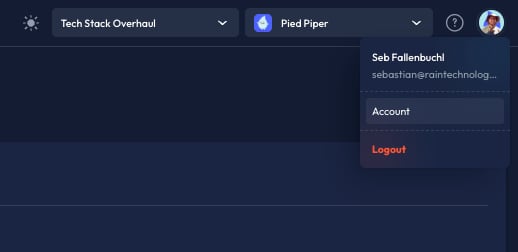
> Access the account settings by clicking your profile picture in the top right and selecting `account` .
Access the account settings by clicking your profile picture in the top right and selecting `account` .
 On the account setting page you'll see [#general-settings](#general-settings "mention").
You can use tabs at the top to toggle between general settings and security settings
## General Settings
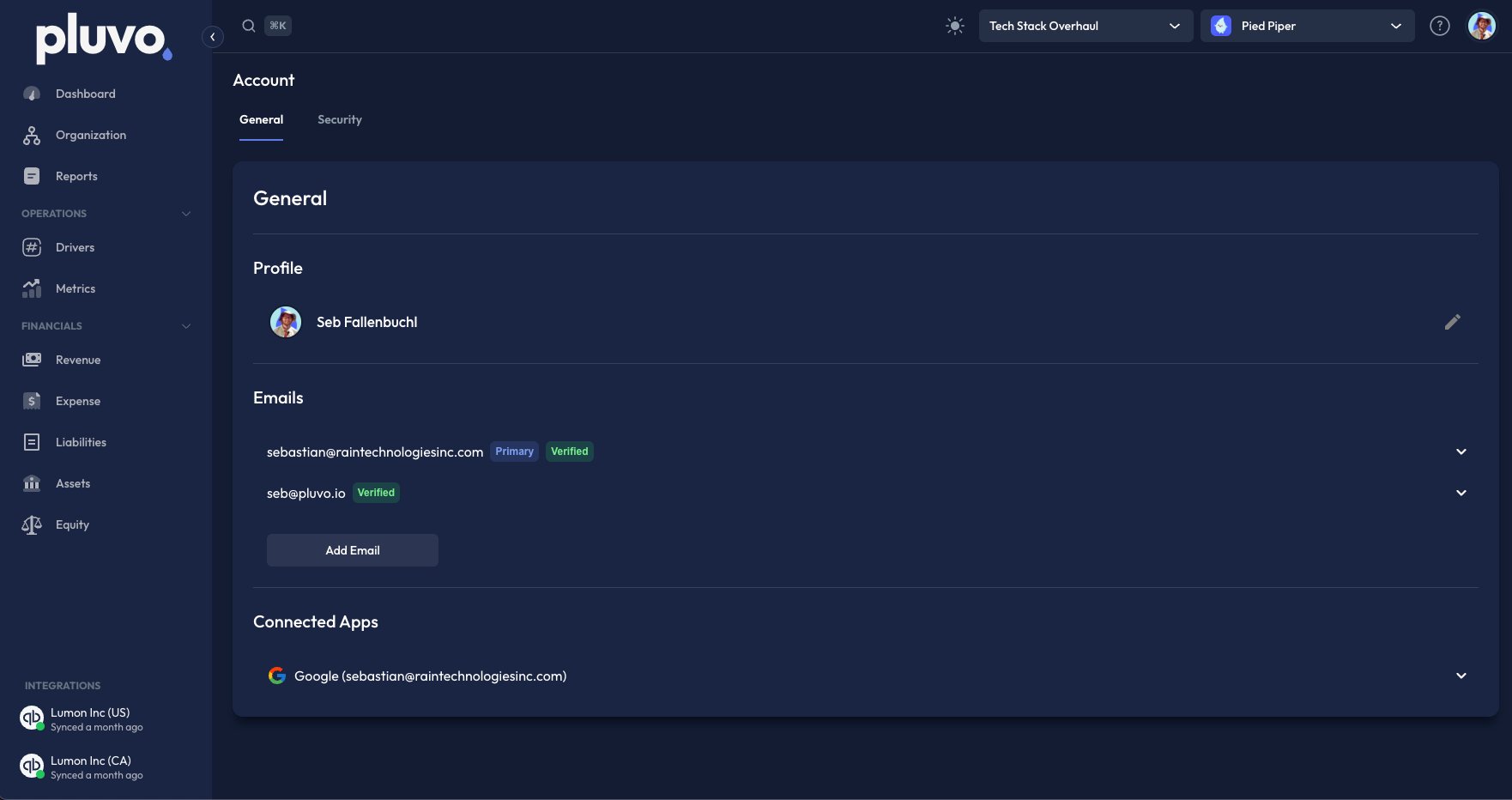
On the account setting page you'll see [#general-settings](#general-settings "mention").
You can use tabs at the top to toggle between general settings and security settings
## General Settings
 ### Edit Profile
Click the pencil icon on the right to edit your profile. Here you can change your account profile picture and user name.
### Edit or Add Emails
Here you can add emails that you would like to recieve communications from Pluvo.
The email you set as your primary will be the one that you use to sign into your account.
### Connected Apps
Here you will see your connected accounts. Note that these are connected accounts you use to sign into Pluvo, and should not be confused with your integrations.
You can remove connected accounts at any time by clicking the `Remove` button.
## Security Settings
### Change or Reset Password
**Step 1:** Select your user profile icon in the top right corner
**Step 2:** Click `Account`
**Step 3:** Navigate to the security tab
**Step 4:** Click `Set Password`
Follow the on-screen instructions to change your password. You will receive an email with confirmation after the action is completed.
If you forgot your password, click the `Forgot password?` link on the pluvo login page (app.pluvo.io/login) and enter the email address associated with your Pluvo account. You will recieve an email with the steps to reset yoru password.
### Two-step Verification (MFA, 2FA)
Select your verification method either SMS or Authenticator app, and then follow the on-screen instructions.
Once activated, your next log-in will prompt you to authenticate via your selected method.
To turn off Two-step verification, click the disable button under the two step verification drop down.
We strongly recommend the use of an Authenticator App when setting up MFA.
### Edit Profile
Click the pencil icon on the right to edit your profile. Here you can change your account profile picture and user name.
### Edit or Add Emails
Here you can add emails that you would like to recieve communications from Pluvo.
The email you set as your primary will be the one that you use to sign into your account.
### Connected Apps
Here you will see your connected accounts. Note that these are connected accounts you use to sign into Pluvo, and should not be confused with your integrations.
You can remove connected accounts at any time by clicking the `Remove` button.
## Security Settings
### Change or Reset Password
**Step 1:** Select your user profile icon in the top right corner
**Step 2:** Click `Account`
**Step 3:** Navigate to the security tab
**Step 4:** Click `Set Password`
Follow the on-screen instructions to change your password. You will receive an email with confirmation after the action is completed.
If you forgot your password, click the `Forgot password?` link on the pluvo login page (app.pluvo.io/login) and enter the email address associated with your Pluvo account. You will recieve an email with the steps to reset yoru password.
### Two-step Verification (MFA, 2FA)
Select your verification method either SMS or Authenticator app, and then follow the on-screen instructions.
Once activated, your next log-in will prompt you to authenticate via your selected method.
To turn off Two-step verification, click the disable button under the two step verification drop down.
We strongly recommend the use of an Authenticator App when setting up MFA.