> ## Documentation Index
> Fetch the complete documentation index at: https://docs.pluvo.io/llms.txt
> Use this file to discover all available pages before exploring further.
# Importing Variables
> Variables from Another Model
## Importing
Variables from Another Model
Pluvo lets you reuse variables across different models—so you don’t need to rebuild the same logic in multiple places.
You can **import a variable** from one model or page into another. This is helpful when multiple models rely on shared assumptions, drivers, or metrics (like headcount, revenue, or global inputs).
 ### How to Import a Variable
1. Scroll to the bottom of the grid
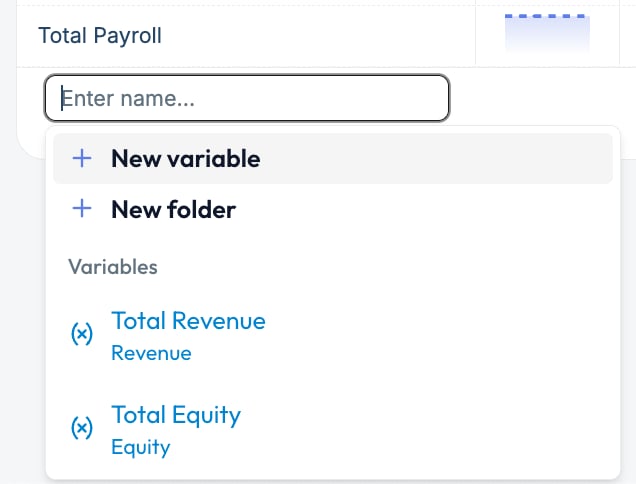
2. Click the **“+ Add Variable”** button
3. Below **“New Variable”** and **“New Folder,”** you’ll see a list of existing variables from other models/pages
4. Click on any variable in that list to import it into your current model
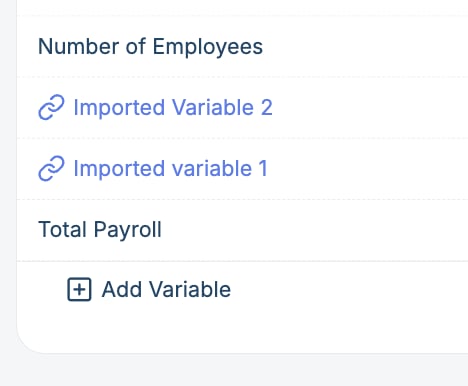
Once imported, the variable will appear in your grid with a special styling:
* **🔗 Chain icon** – indicates it’s imported
* **Blue coloring** – visually distinguishes it from locally defined variables
### How to Import a Variable
1. Scroll to the bottom of the grid
2. Click the **“+ Add Variable”** button
3. Below **“New Variable”** and **“New Folder,”** you’ll see a list of existing variables from other models/pages
4. Click on any variable in that list to import it into your current model
Once imported, the variable will appear in your grid with a special styling:
* **🔗 Chain icon** – indicates it’s imported
* **Blue coloring** – visually distinguishes it from locally defined variables
 ### Working with Imported Variables
Imported variables are **read-only** in the current model.
* You **can’t edit** the forecast definition, actuals mapping, or values here
* You can change the display name of imported variables, but this will only update their name in the current grid.
Their name is not changed in their original model, or any other models they've been imported to.
* To make changes, go to the model or page where the variable was originally created
* Hover over the variable name in the grid to see **where it came from**
This keeps shared logic consistent across models while preventing accidental edits.
### Best Practices
* Use imported variables for **shared inputs** or **centralized logic** (like FX rates, headcount, shared revenue drivers)
* Name variables clearly so they’re easy to identify when importing
* Group shared variables into dedicated pages or folders for easy reuse
* If you need to modify an imported variable, make a local copy or go to its source model
Need help setting up shared variables across models? Reach out to [support@pluvo.io](mailto:support@pluvo.io).
### Working with Imported Variables
Imported variables are **read-only** in the current model.
* You **can’t edit** the forecast definition, actuals mapping, or values here
* You can change the display name of imported variables, but this will only update their name in the current grid.
Their name is not changed in their original model, or any other models they've been imported to.
* To make changes, go to the model or page where the variable was originally created
* Hover over the variable name in the grid to see **where it came from**
This keeps shared logic consistent across models while preventing accidental edits.
### Best Practices
* Use imported variables for **shared inputs** or **centralized logic** (like FX rates, headcount, shared revenue drivers)
* Name variables clearly so they’re easy to identify when importing
* Group shared variables into dedicated pages or folders for easy reuse
* If you need to modify an imported variable, make a local copy or go to its source model
Need help setting up shared variables across models? Reach out to [support@pluvo.io](mailto:support@pluvo.io).