> ## Documentation Index
> Fetch the complete documentation index at: https://docs.pluvo.io/llms.txt
> Use this file to discover all available pages before exploring further.
# Models
> Models are the foundation of financial planning in Pluvo.
Models are the foundation of financial planning in Pluvo.
Each model contains its own [grid](/modelling/features/grids) of variables, time-based logic, and scenarios. You can use models to represent your entire business or break things down into focused plans—like headcount, revenue, or departmental budgets.
### What Is a Model?
A **model** is a container for:
* Variables with forecast and actuals logic
* Scenarios (Base + alternate cases)
* A customizable time range
* A grid interface for entering, calculating, and visualizing data
Models are fully flexible—you decide what each model represents and how they’re organized.
### Creating a Model
To create a new model:
1. Click the **“+”** button in the sidebar and select "Add Model"
2. Name your model
3. (Optional) Choose or create a folder to store it in
4. Your model will open with a blank grid, ready for variable setup
### Toolbar
 The model toolbar gives you quick access to powerful tools while working in the grid:
* **Search Bar**
Typing in the search bar will filter the grid to variables with names that match the search terms.
* **Column Toggles**\
Show or hide:
* Sparkline column
* Actuals formula column
* Forecast formula column
* **Undo / Redo**\
Use keyboard shortcuts or click the toolbar arrows to undo or redo changes
* **Export**\
Export the current grid as **CSV** or **Excel**
* **Model Settings (Gear Icon)**\
Open settings to:
* Change the model’s **date range.** This sets the start/end date of the current model.
Note that increasing the length of the model (both forward and backwards) increases the numbers of cells that need to be calculated.
* **Date Picker**
Use the date picker to change the date rage that is visible in the grid. This does not change the model's start/end date.
If auto-recompute is off, you’ll see a **Recompute** button to manually trigger updates.
### Scenario Switcher
Switch between Base and alternate scenarios from the top-right dropdown.
You can compare differences between scenarios, make what-if plans, and **merge** an alternate back into the Base version when you’re ready to commit.
### Organizing Models
Pluvo gives you full control over how models are structured:
The model toolbar gives you quick access to powerful tools while working in the grid:
* **Search Bar**
Typing in the search bar will filter the grid to variables with names that match the search terms.
* **Column Toggles**\
Show or hide:
* Sparkline column
* Actuals formula column
* Forecast formula column
* **Undo / Redo**\
Use keyboard shortcuts or click the toolbar arrows to undo or redo changes
* **Export**\
Export the current grid as **CSV** or **Excel**
* **Model Settings (Gear Icon)**\
Open settings to:
* Change the model’s **date range.** This sets the start/end date of the current model.
Note that increasing the length of the model (both forward and backwards) increases the numbers of cells that need to be calculated.
* **Date Picker**
Use the date picker to change the date rage that is visible in the grid. This does not change the model's start/end date.
If auto-recompute is off, you’ll see a **Recompute** button to manually trigger updates.
### Scenario Switcher
Switch between Base and alternate scenarios from the top-right dropdown.
You can compare differences between scenarios, make what-if plans, and **merge** an alternate back into the Base version when you’re ready to commit.
### Organizing Models
Pluvo gives you full control over how models are structured:
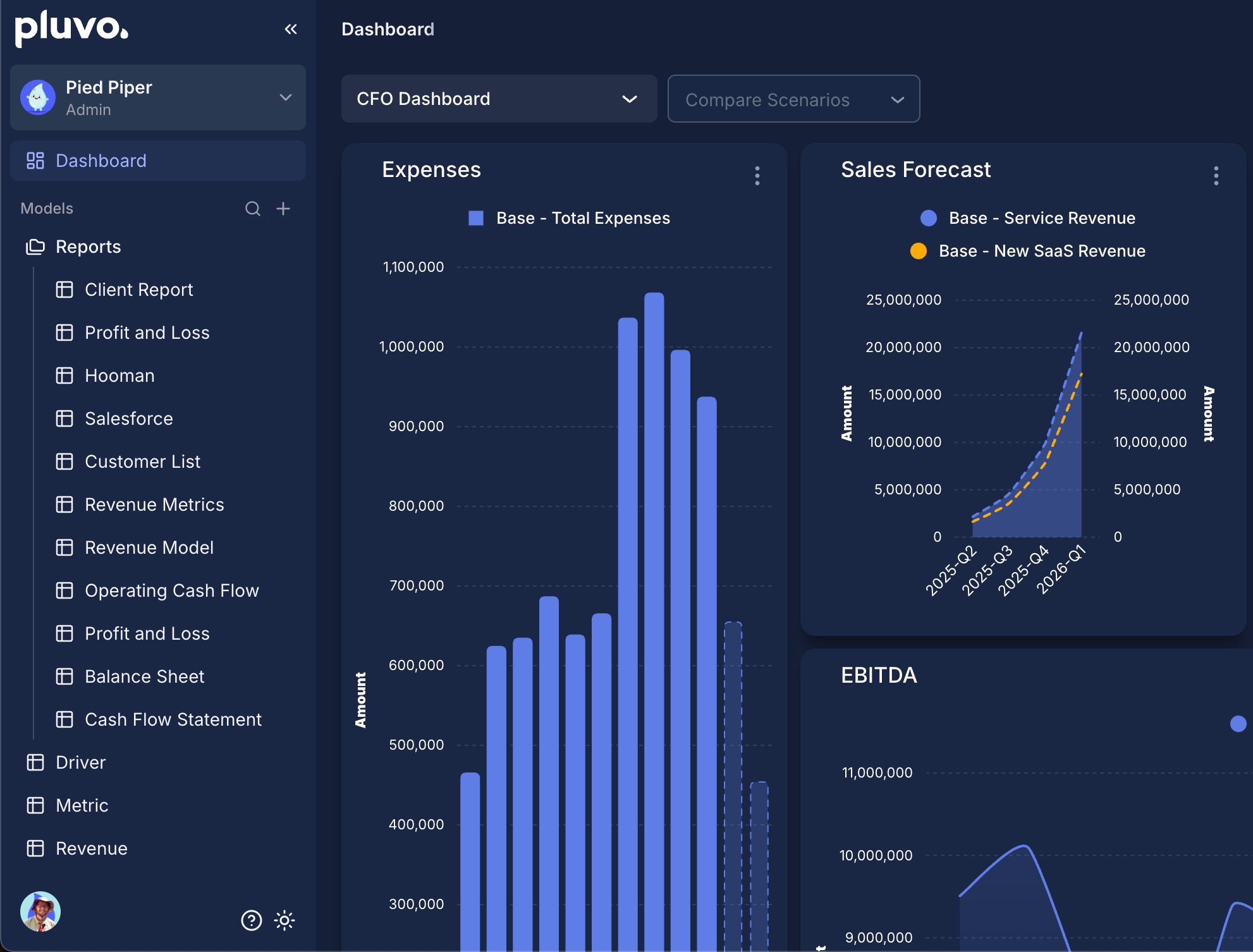 #### Model Folders
* Create folders to group related models (e.g., “Go-to-Market”, “Headcount”, “Operations”)
* Drag and drop models into folders from the sidebar
* Nest folders for more complex hierarchies
* Collapse folders to keep your workspace tidy
#### Model Folders
* Create folders to group related models (e.g., “Go-to-Market”, “Headcount”, “Operations”)
* Drag and drop models into folders from the sidebar
* Nest folders for more complex hierarchies
* Collapse folders to keep your workspace tidy

#### Creating a Model Folder
To create a new model folder:
1. Click the **“+”** button in the sidebar and select "Add Folder"
2. Name your folder
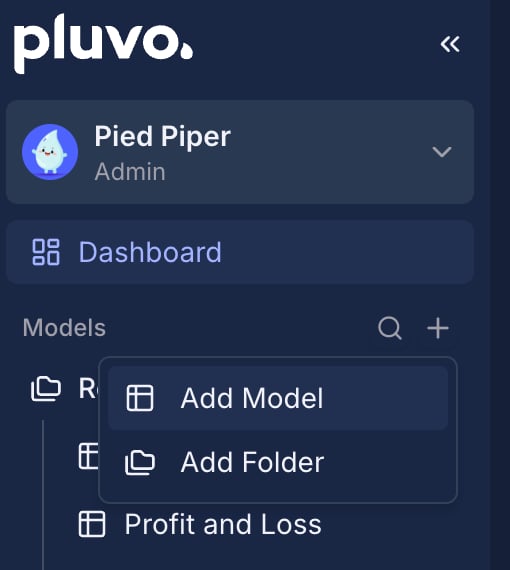 #### Sidebar Visibility
* Click the chevron to hide/show the sidebar
* Models and folders are visible from the **Sidebar**
* You can add, move, or remove models from the sidebar by dragging or selecting the three dots next to the model/folder name.
* Use the Sidebar to quickly access and structure your workspace based on how your team plans
#### Sidebar Visibility
* Click the chevron to hide/show the sidebar
* Models and folders are visible from the **Sidebar**
* You can add, move, or remove models from the sidebar by dragging or selecting the three dots next to the model/folder name.
* Use the Sidebar to quickly access and structure your workspace based on how your team plans

### Best Practices
* Create separate models for major business components or planning areas
* Use folders to reflect organizational structure, planning ownership, or timeframes
* Keep models focused—then **import variables** between them as needed to avoid duplication
Ready to build? Head to the Sidebar, create your first model, and start forecasting.