> ## Documentation Index
> Fetch the complete documentation index at: https://docs.pluvo.io/llms.txt
> Use this file to discover all available pages before exploring further.
# Switching Scenario
> The dropdown menu that greets you will display your active scenario. A list of all other created scenarios will appear vertically below the ‘New Scenario’
**Step 1:** Click on the scenario dropdown in the top right corner of your screen. You will find this menu beside the organization dropdown discussed previously.
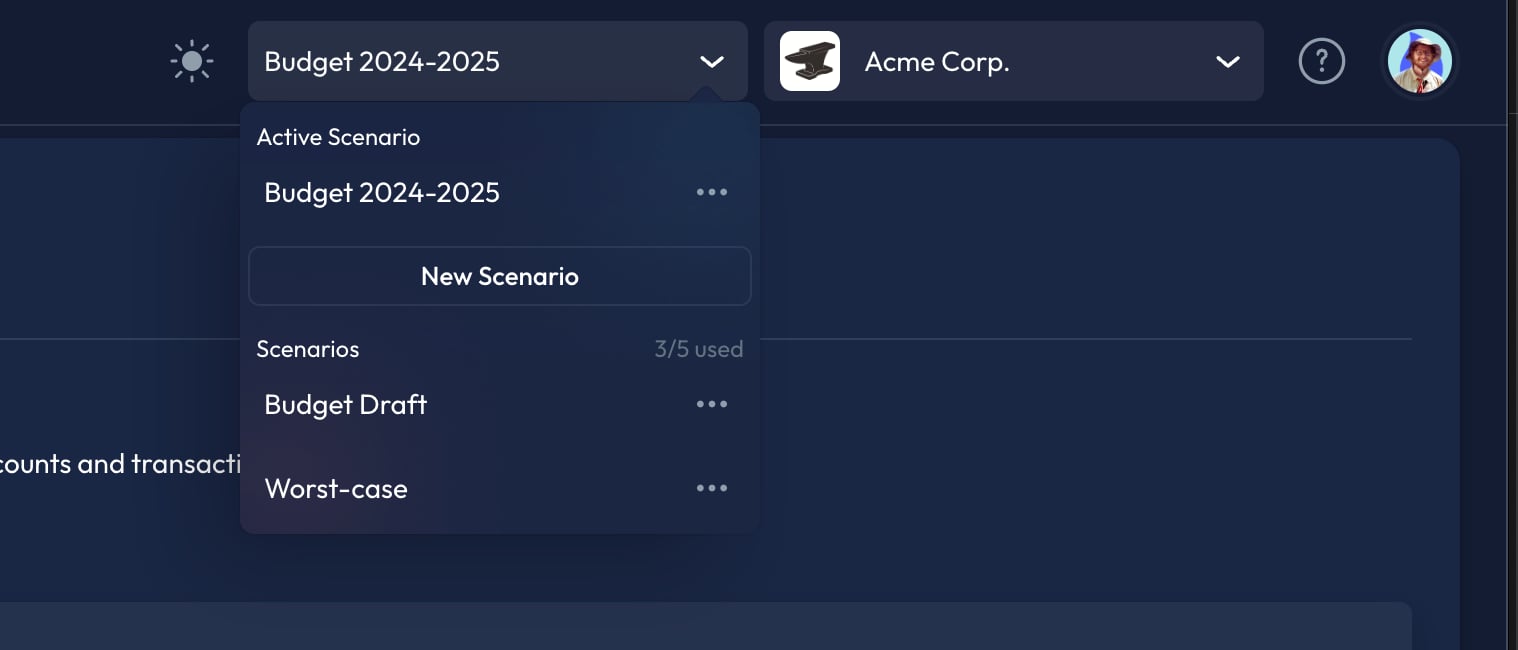 The dropdown menu that greets you will display your active scenario. A list of all other created scenarios will appear vertically below the ‘New Scenario’ button.
**Step 2:** Select your desired scenario from the list of existing scenarios.
To create a new scenario, select the New Scenario button and choose an existing scenario to clone.
The dropdown menu that greets you will display your active scenario. A list of all other created scenarios will appear vertically below the ‘New Scenario’ button.
**Step 2:** Select your desired scenario from the list of existing scenarios.
To create a new scenario, select the New Scenario button and choose an existing scenario to clone.