> ## Documentation Index
> Fetch the complete documentation index at: https://docs.pluvo.io/llms.txt
> Use this file to discover all available pages before exploring further.
# Data
> Connect your accounting systems, warehouses, and files so Pluvo has a single, trusted source of financial data to work from.
## What it does
Data is where you connect the systems your numbers already live in. Once a source is connected, Pluvo syncs the underlying tables, keeps them up to date, and makes them available to everything else in the platform, from your Ontology to Ask and Analyze.
You can connect three kinds of sources: cloud data warehouses, accounting and finance apps, and flat files you upload yourself. Mix and match as many as you need, all in one place.
## What you can connect
From **Data**, choose **Add new data source** and pick from the categories below.
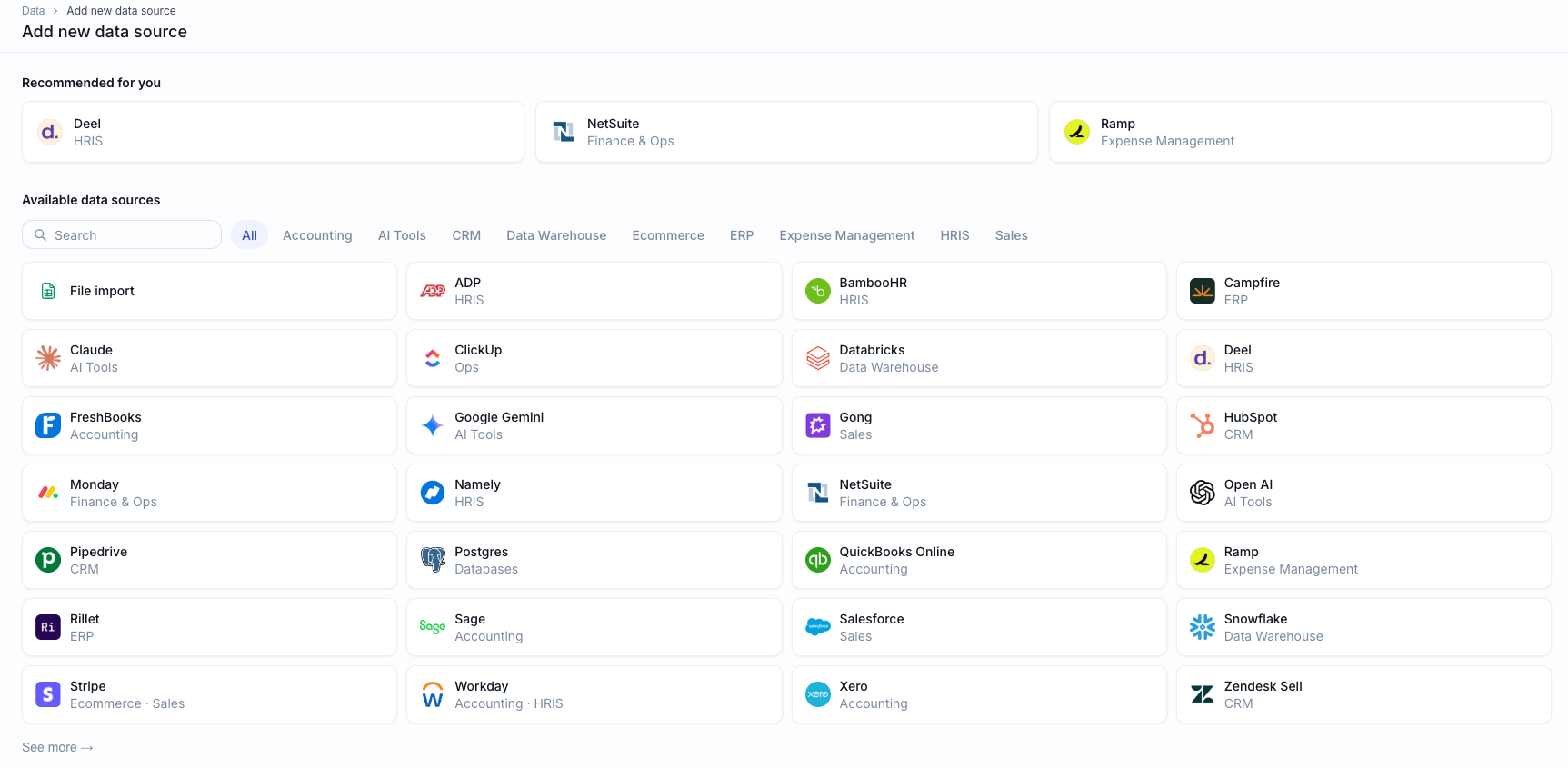 **Data warehouses.** Connect directly to your warehouse to bring in data at scale: PostgreSQL, Snowflake, and Databricks.
**Direct connectors.** Connect straight to an app's own API for a real-time, native link: Xero, QuickBooks, and Stripe.
**Merge connectors.** Connect through a unified integration layer that normalizes data from many systems into a consistent shape: NetSuite, Sage Intacct, QuickBooks, Salesforce, and Xero. Merge connectors are useful when you want the same fields and structure across different source systems.
**Custom integrations.** Bring in pre-mapped accounting data through Merge Accounting Upload.
**File upload.** Upload your own spreadsheets and CSVs when the data is not in a connected system.
Some systems appear under more than one category (for example QuickBooks and Xero). A direct connector links to that app's native API, while a merge connector standardizes its data alongside your other systems. Pick whichever fits how you want the data structured.
## How to connect a source
Open **Data**, select **Add new data source**, and choose the system you want to connect. You can use the search box at the top to find it quickly.
For apps like Xero, QuickBooks, and Stripe, you sign in through that service and authorize Pluvo. For warehouses, you enter your connection details (such as host, database, and credentials). For files, you select the spreadsheet or CSV to upload.
Choose which tables or datasets you want Pluvo to sync from the source.
Pluvo pulls in the selected data. You can watch progress as each table syncs.
Give the connection a clear name (for example "NetSuite data") and finish. It then appears in your list of sources with its current status.
## Keeping data current
After the first sync, Pluvo keeps your data up to date by pulling in new and changed records. A connection shows a status such as **READY** when it is healthy and available to use across the platform. You can re-sync a source at any time, and if something looks off you can re-run a full sync to reimport everything from scratch.
## Tips
Give each connection a name you will recognize later. You will see that name when you pick a source in the Ontology and elsewhere, so "NetSuite data" is clearer than the default.
For spreadsheets, each tab in an Excel workbook comes in as its own table, so structure your file the way you want it to appear in Pluvo before uploading.
## What's next
Once your data is connected, head to the **Ontology** to see how Pluvo maps those raw tables into connected business entities you can analyze.
**Data warehouses.** Connect directly to your warehouse to bring in data at scale: PostgreSQL, Snowflake, and Databricks.
**Direct connectors.** Connect straight to an app's own API for a real-time, native link: Xero, QuickBooks, and Stripe.
**Merge connectors.** Connect through a unified integration layer that normalizes data from many systems into a consistent shape: NetSuite, Sage Intacct, QuickBooks, Salesforce, and Xero. Merge connectors are useful when you want the same fields and structure across different source systems.
**Custom integrations.** Bring in pre-mapped accounting data through Merge Accounting Upload.
**File upload.** Upload your own spreadsheets and CSVs when the data is not in a connected system.
Some systems appear under more than one category (for example QuickBooks and Xero). A direct connector links to that app's native API, while a merge connector standardizes its data alongside your other systems. Pick whichever fits how you want the data structured.
## How to connect a source
Open **Data**, select **Add new data source**, and choose the system you want to connect. You can use the search box at the top to find it quickly.
For apps like Xero, QuickBooks, and Stripe, you sign in through that service and authorize Pluvo. For warehouses, you enter your connection details (such as host, database, and credentials). For files, you select the spreadsheet or CSV to upload.
Choose which tables or datasets you want Pluvo to sync from the source.
Pluvo pulls in the selected data. You can watch progress as each table syncs.
Give the connection a clear name (for example "NetSuite data") and finish. It then appears in your list of sources with its current status.
## Keeping data current
After the first sync, Pluvo keeps your data up to date by pulling in new and changed records. A connection shows a status such as **READY** when it is healthy and available to use across the platform. You can re-sync a source at any time, and if something looks off you can re-run a full sync to reimport everything from scratch.
## Tips
Give each connection a name you will recognize later. You will see that name when you pick a source in the Ontology and elsewhere, so "NetSuite data" is clearer than the default.
For spreadsheets, each tab in an Excel workbook comes in as its own table, so structure your file the way you want it to appear in Pluvo before uploading.
## What's next
Once your data is connected, head to the **Ontology** to see how Pluvo maps those raw tables into connected business entities you can analyze.